Create an assessment
When you create an assessment, you attach a worksheet to one or more classes and Running Paper generates a unique paper for each student, ready to print and hand out.
Each paper carries a QR code, so when scans come in, Running Paper knows which student each page belongs to and puts the pages back in the right order - no matching names or shuffling pages by hand!
Create assessment
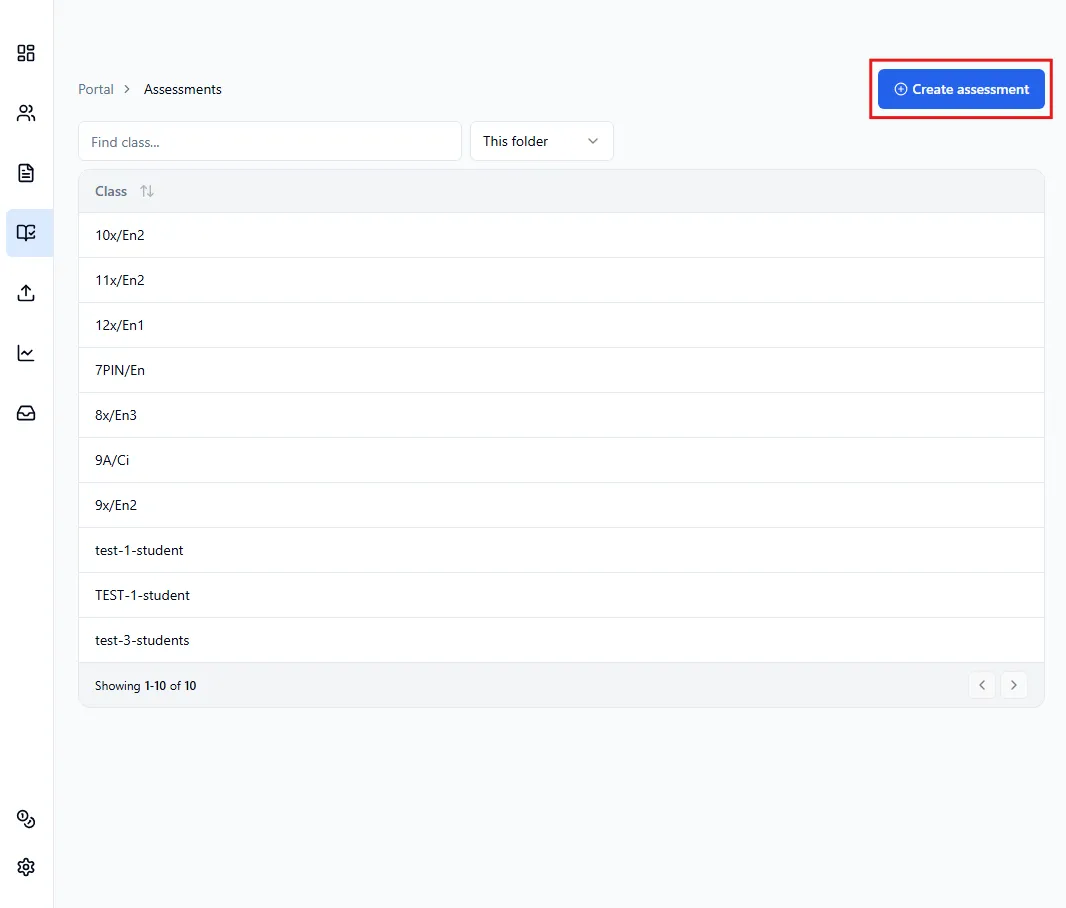
Section titled “Create assessment”Once you are in the Assessments page, click on Create assessment.
The input fields change depending on which worksheet type you select.
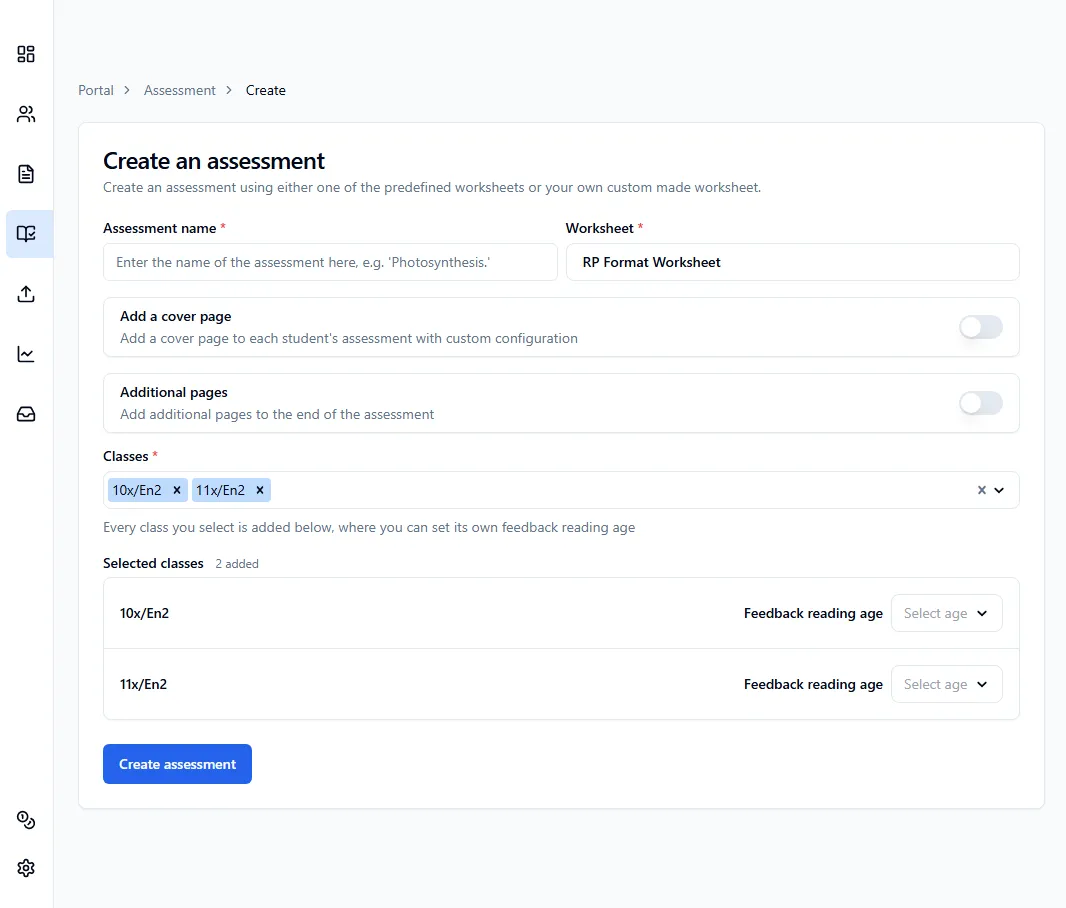
RP format assessment
Section titled “RP format assessment”If you select an RP format worksheet, you’ll need to:
- Enter the assessment name
- Select the worksheet
- (Optional) Add a cover page
- (Optional) Add additional pages
- Select the classes that’ll be doing the assessment
- Set the feedback reading age for each class selected
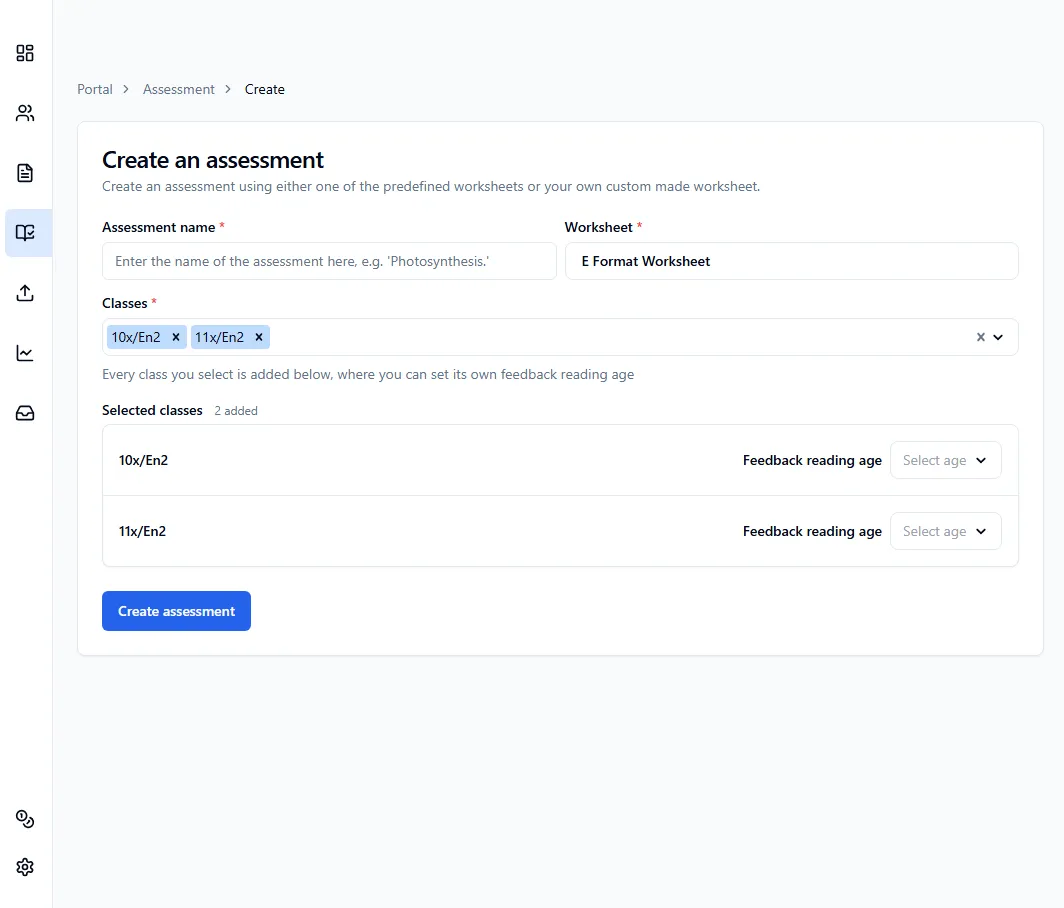
External format assessment
Section titled “External format assessment”If you select an external format worksheet, you’ll need to:
- Enter the assessment name
- Select the worksheet
- Select the classes that’ll be doing the assessment
- Set the feedback reading age for each class selected
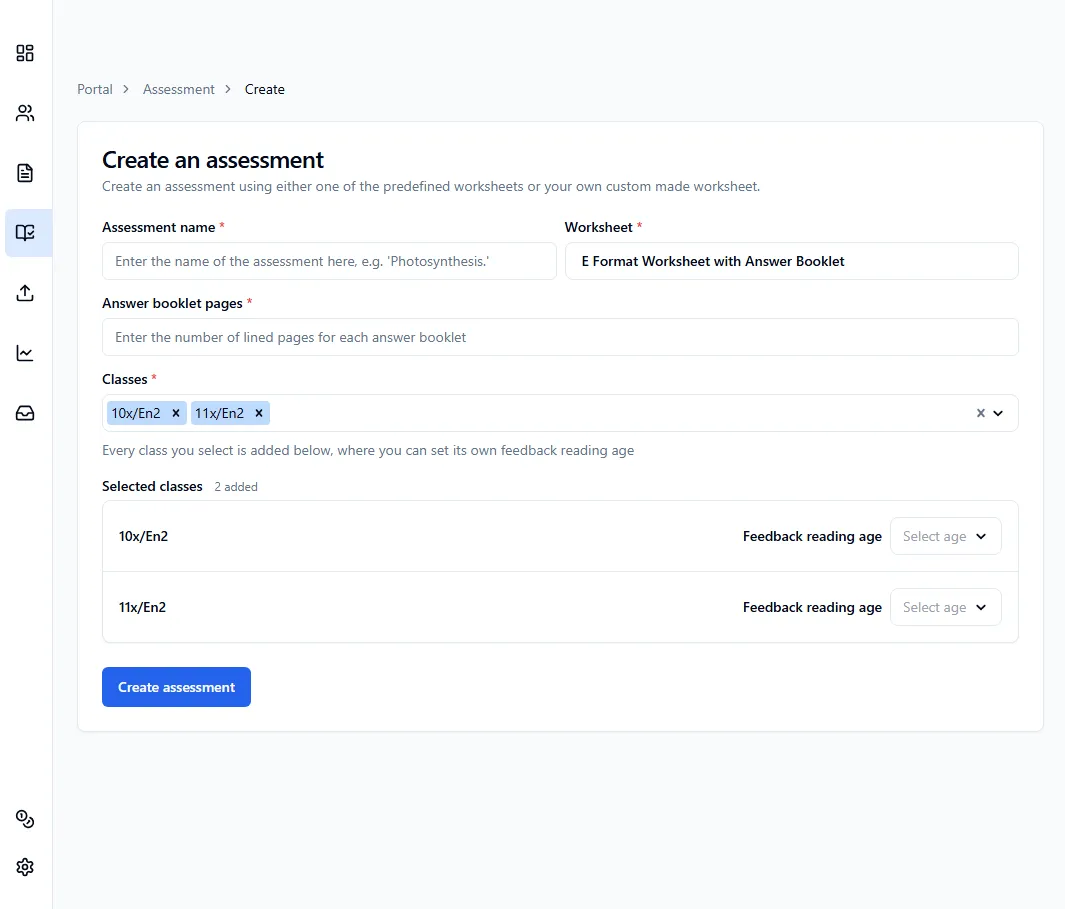
External format assessment with answer booklet
Section titled “External format assessment with answer booklet”If you select an external format worksheet with an answer booklet feature selected, you’ll need to:
- Enter the assessment name
- Select the worksheet
- Enter the number of lined pages for each answer booklet
- Select the classes that’ll be doing the assessment
- Set the feedback reading age for each class selected
Once you’re done, click Create assessment, and you’ll be taken to the assessments table for the first class that you’ve selected.