Worksheet builder
The builder is where you assemble the actual content of your worksheet. Most controls live in the toolbar across the top of the page, with question-specific options on the row above each question.
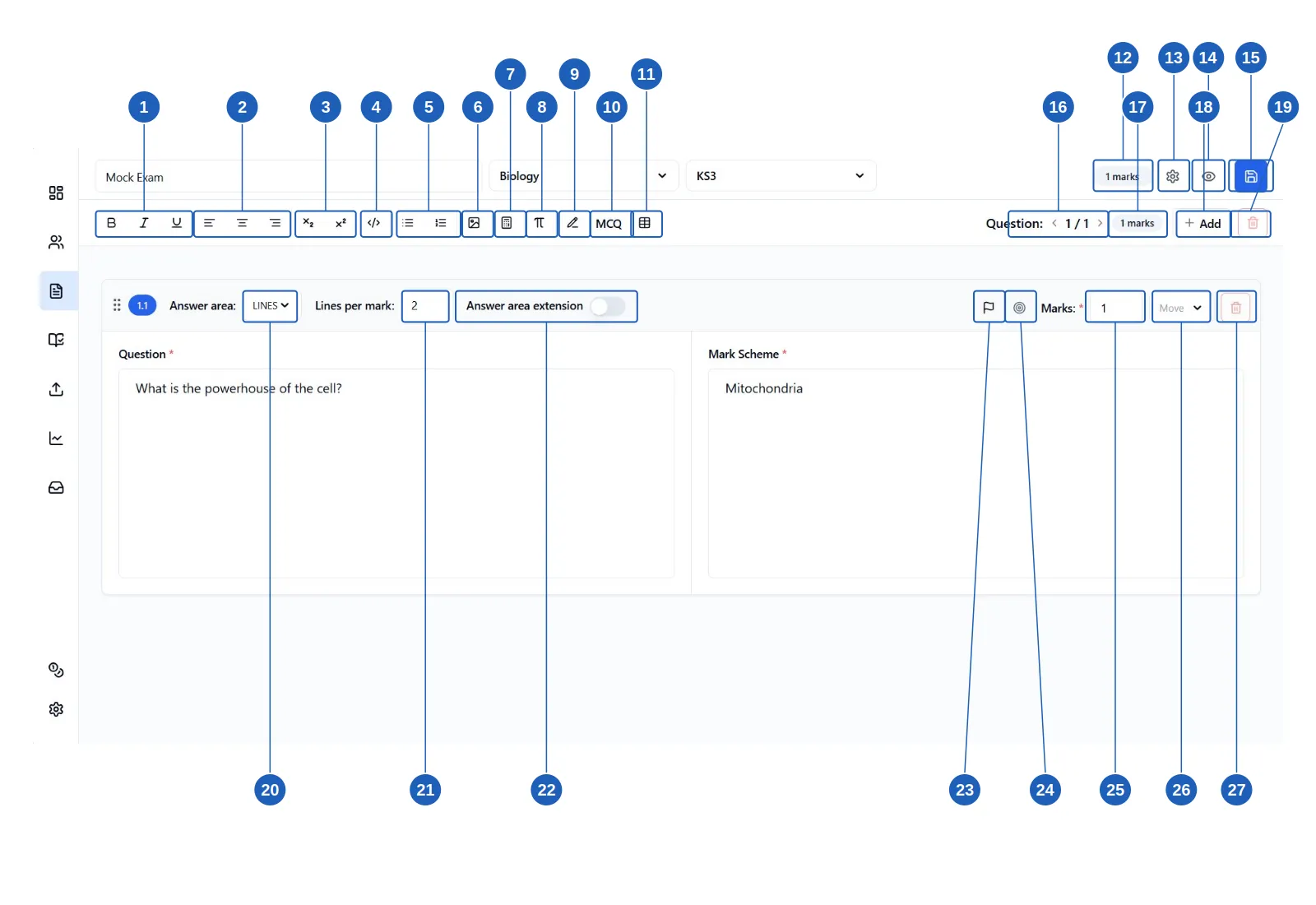
Formatting
Section titled “Formatting”- Text styling - turn text bold, italic, and/or underlined.
- Text alignment - align text and images left, centre, or right.
- Subscript and superscript - add subscript and superscript values.
- Insert code block - add a block of code or monospaced text.
- Unordered and ordered lists - bullet points, or numbered/lettered lists (1.2.3 or A.B.C).
- Add images - upload or paste images into the text box.
- Add LaTeX - add complex mathematical equations, e.g. fractions, integrals, derivatives, chemical equations.
- Add symbols and special characters - arrows, harpoons, Greek letters, and more.
- Add answer line - add a line to fill in before or after text, or add an answer line on a new line.
- Add MCQ layout - add a multiple-choice layout that you can edit.
- Insert table - add a table for tabular questions or structured answer spaces.
Worksheet controls
Section titled “Worksheet controls”- Total marks of worksheet - the running total across every question.
- Marking guidance - settings that help the AI mark this worksheet.
- Preview worksheet - opens a new tab with a live preview.
- Save worksheet - saves your changes to the worksheet.
Question controls
Section titled “Question controls”- Question navigation - move between questions in the worksheet.
- Total marks of question - the running total for the question you are currently editing.
- Add question - add a new question group.
- Delete question - delete the current question group.
Answer area
Section titled “Answer area”- Answer area - choose between lines, blank space, or none.
- Lines per mark - the measurement used for the answer space. For example, 2 lines per mark gives a student two lines of writing space for every mark available.
- Answer area extension - toggle on to add extra text or extra lines below the answer area, for longer responses or additional working-out space.
Sub-question controls
Section titled “Sub-question controls”- Flag for low confidence - manually flag this sub-question to always be reviewed by you, regardless of how confident the AI is in its mark.
- Learning objective - assign a learning objective to this sub-question, so QLA and reports can show which objectives your class is mastering and which need more work.
- Marks - the total marks available for this sub-question.
- Move sub-question - move this sub-question to the end of another question group.
- Delete sub-question - delete this sub-question only.