Scan papers
Once your students have finished, you’ll need to scan their papers into PDFs before you upload them. You can scan pages in any order: upside down, back to front, shuffled, it doesn’t matter. You can even scan papers from different assessments in the same batch and Running Paper will sort them for you.
Getting the pages ready
Section titled “Getting the pages ready”Take the pages apart so they can go through the scanner’s document feeder. How you do this depends on how the papers were printed:
| Printed as | What to do |
|---|---|
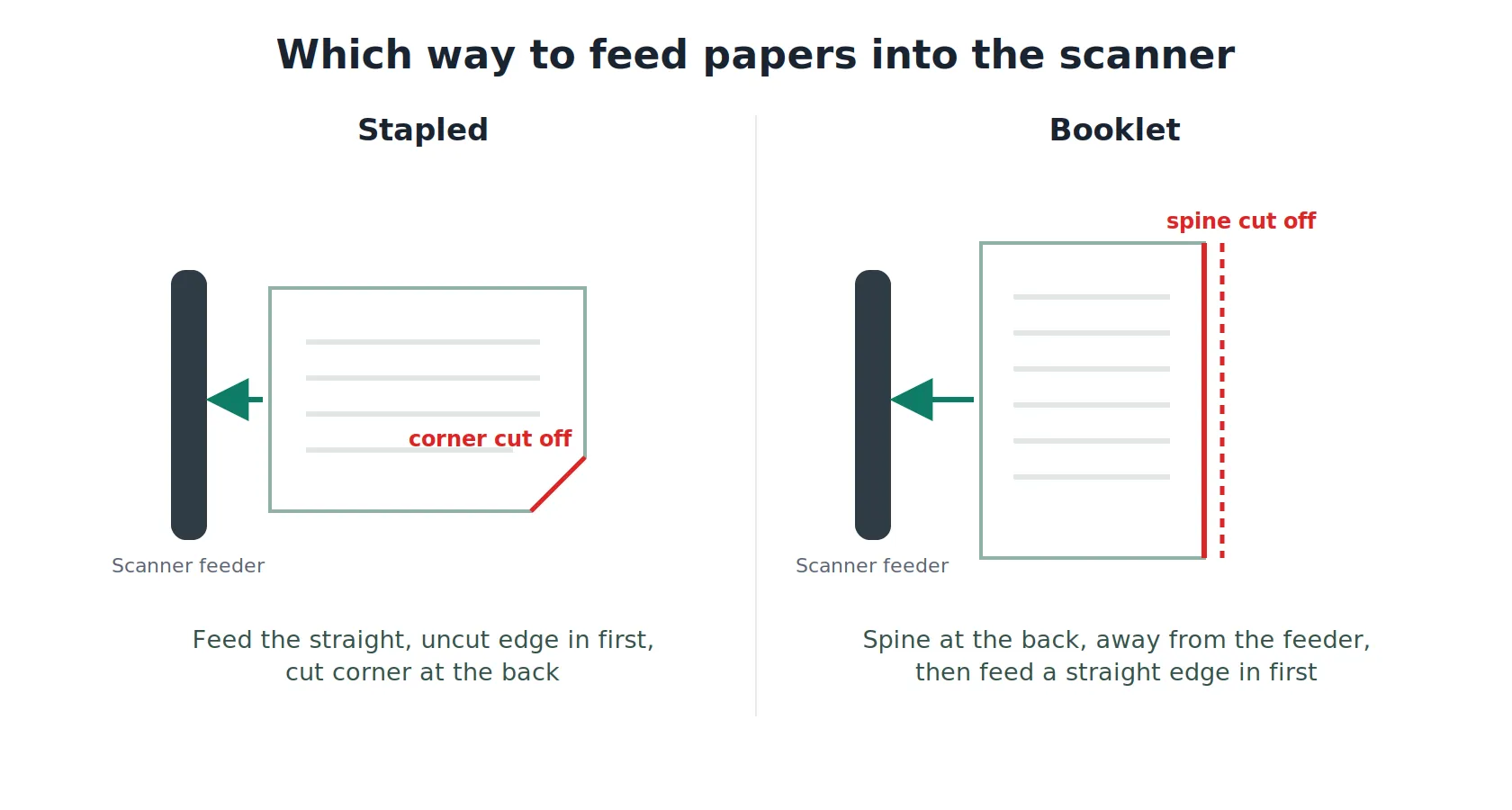
| Stapled | Cut off the stapled corner with a guillotine or a pair of scissors. Load the stack so the straight, uncut edge goes into the feeder first and the cut corner is at the back. If the cut corner goes in first, the pages can get stuck. |
| Booklet | Guillotine the spine off so the booklet comes apart into loose sheets. Load the stack so the cut edge is furthest from the feeder and goes in last. If the cut edge goes in first, the pages can get stuck. |
| Treasury tags | Take the treasury tag out and scan the loose sheets. |
| Loose sheets | Scan as they are. |
Scanning
Section titled “Scanning”1. Choose Scan to folder
Section titled “1. Choose Scan to folder”On the photocopier, choose Scan to folder before you do anything else. This sends the scans to a folder (for example OneDrive, Google Drive or a network folder) rather than to email. Scan to email usually has a file size limit, so a folder lets you scan far more pages in one go.
2. Set the scan settings
Section titled “2. Set the scan settings”Set these before you scan:
| Setting | Choose |
|---|---|
| Double-sided | Turn on if the papers were printed double-sided. |
| Colour | Black and white. |
| DPI | The lowest setting. This keeps the files small and is all Running Paper needs. |
| File type | PDF. |
| Scan size | A4. |
If your photocopier has a setting that lets you scan in batches and keep loading more pages into one scan, turn it on. Depending on the make, it may be called Job Build, Build Job, Batch or Separate Scan. This lets you scan a large stack in several loads and still get a single PDF.
3. Scan
Section titled “3. Scan”Put the pages in the document feeder, not on the glass, so you can scan a whole class in one go. Then press Start.
Keep each scan to 1,000 pages or fewer. Some photocopiers have a lower limit, so if a scan stops early, split the pages into smaller batches.
Once your scans are saved as PDFs, head to upload scans.