Printing
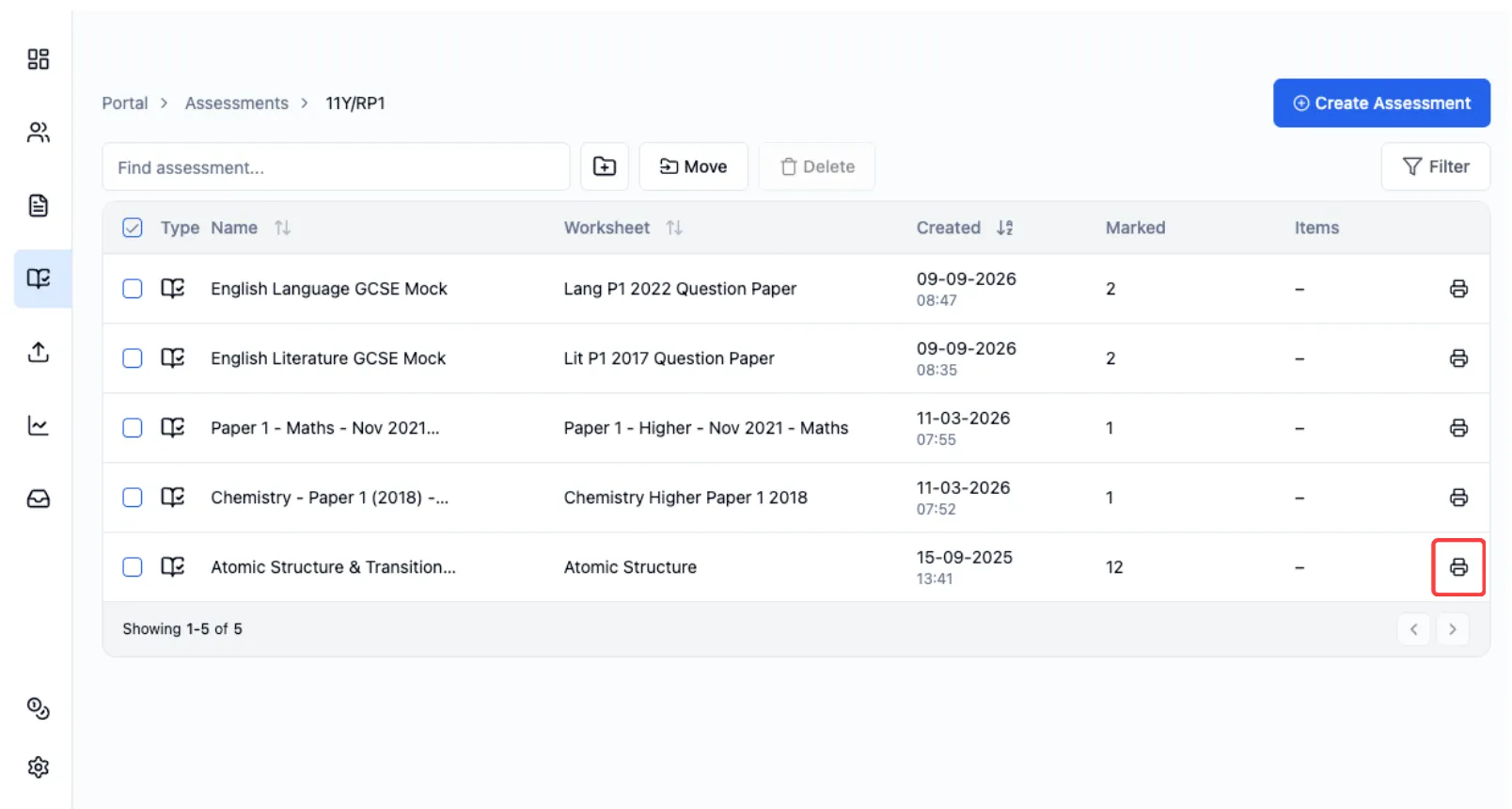
In the assessments table click the Print icon.
Choose how you want the papers:
| Choose | You get | Best for |
|---|---|---|
| Separate | A .zip file with one PDF for each student. | Papers that need stapling or booklets. |
| Combined | One PDF with the whole class in it. It opens in a new tab. | Loose sheets, treasury tags, or stapling if your printer supports it. |
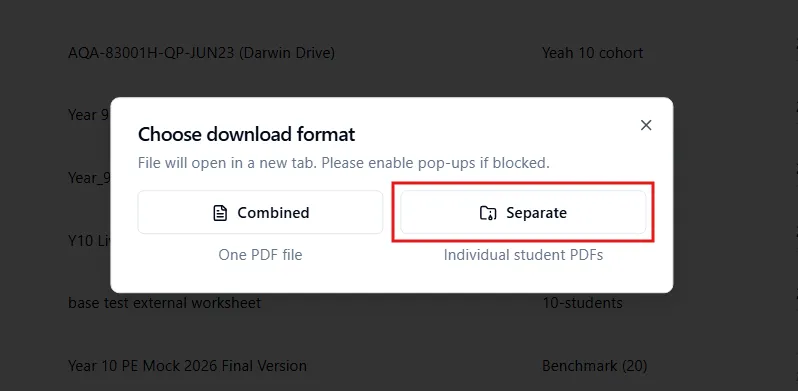
Choose Combined if the papers aren’t being stapled, or if your printer can staple a combined PDF. Every student’s paper is in a single PDF. If a paper has an odd number of pages, a blank page is added after it, so double-sided printing never puts two students on the same sheet. If nothing opens, your browser may be blocking pop-ups. Allow pop-ups for Running Paper and try again.
Choose Separate if you want each student’s paper printed on its own, for example stapled or as a booklet, using your printer’s settings. See batch printing separate PDFs below, or Print Conductor if your school uses it.
Staple a combined PDF
Section titled “Staple a combined PDF”Some printers can staple a single combined PDF into a separate set for each student. This is the quickest way to get stapled papers, as you only print one file.
- Open the combined PDF and click Print.
- Choose your printer, then click Properties (or Preferences).
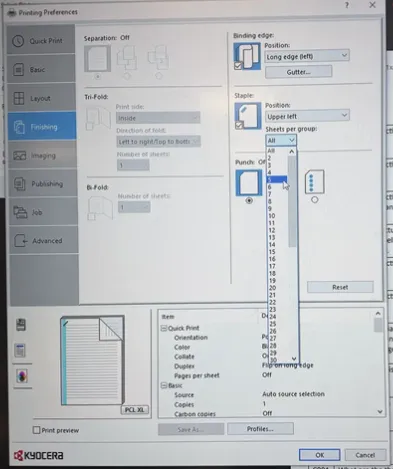
- Go to Finishing and choose Staple.
- Look for Sheets per Group (it may be called something similar). Enter the number of sheets in one student’s paper.
- Choose 2-sided and colour if needed, then print.
For example, a 10-page paper printed double-sided uses 5 sheets, so set Sheets per Group to 5. For a class of 20 the printer staples every 5 sheets, giving you 20 separate stapled papers.
If a paper has an odd number of pages, count the blank page that is added at the end. A 9-page paper becomes 10 pages, so it’s still 5 sheets.
Set up your computer for batch printing
Section titled “Set up your computer for batch printing”You only need to do this if you chose Separate. If your school uses Print Conductor, skip to Batch print with Print Conductor. Windows can change your default printer without telling you, for example after you print to a different printer. Check these settings each time before you batch print.
1. Open PDFs with Adobe Acrobat
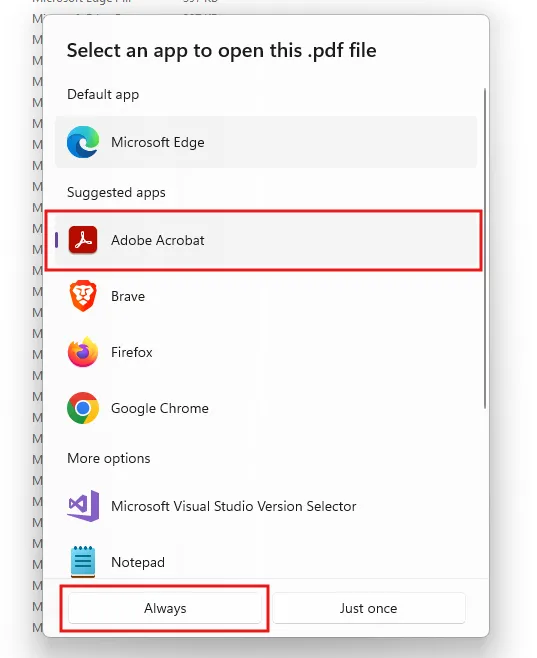
Section titled “1. Open PDFs with Adobe Acrobat”Right-click printing doesn’t work if PDFs open in Microsoft Edge. To switch to Adobe Acrobat:
-
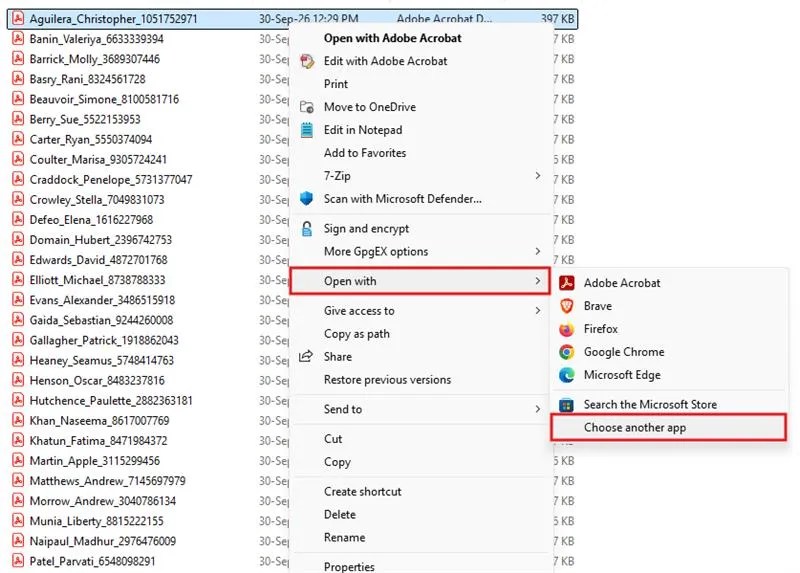
Right-click any PDF, click Open with, then click Choose another app.
-
Click Adobe Acrobat, then click Always.
2. Pick the right default printer
Section titled “2. Pick the right default printer”Right-click printing sends everything straight to your default printer, so make sure it’s the one you collect from.
-
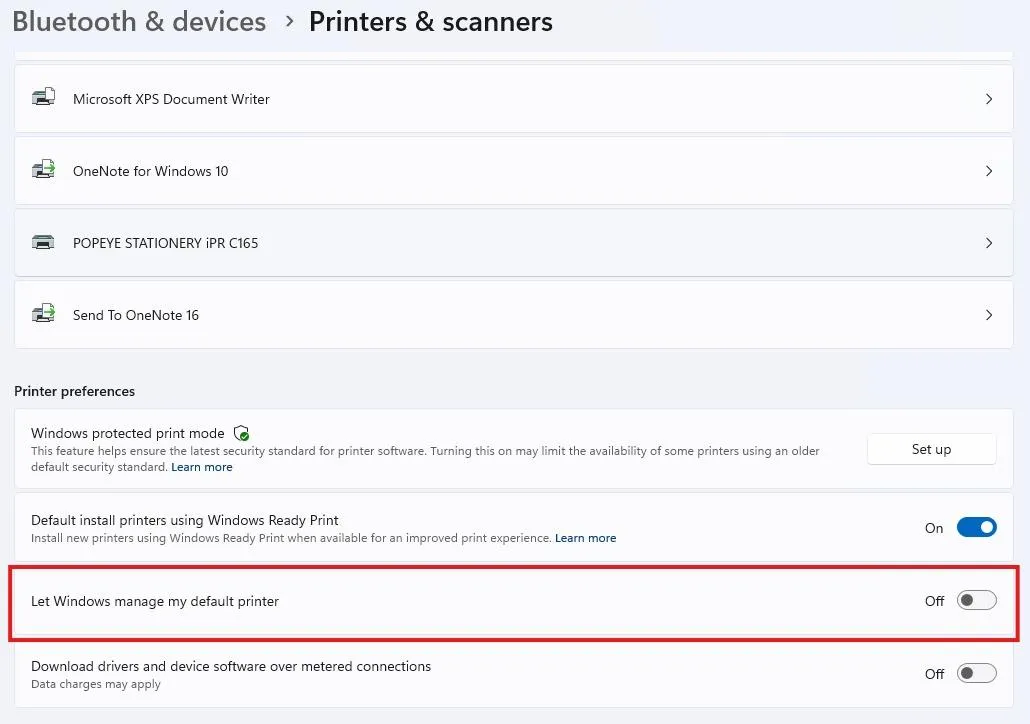
Press the Windows key, type Printers and open Printers & scanners.
-
Scroll down to Printer preferences and turn off Let Windows manage my default printer. If this is left on, Windows switches your default to whichever printer you used last.
-
Scroll back up, click your printer, then click Set as default.
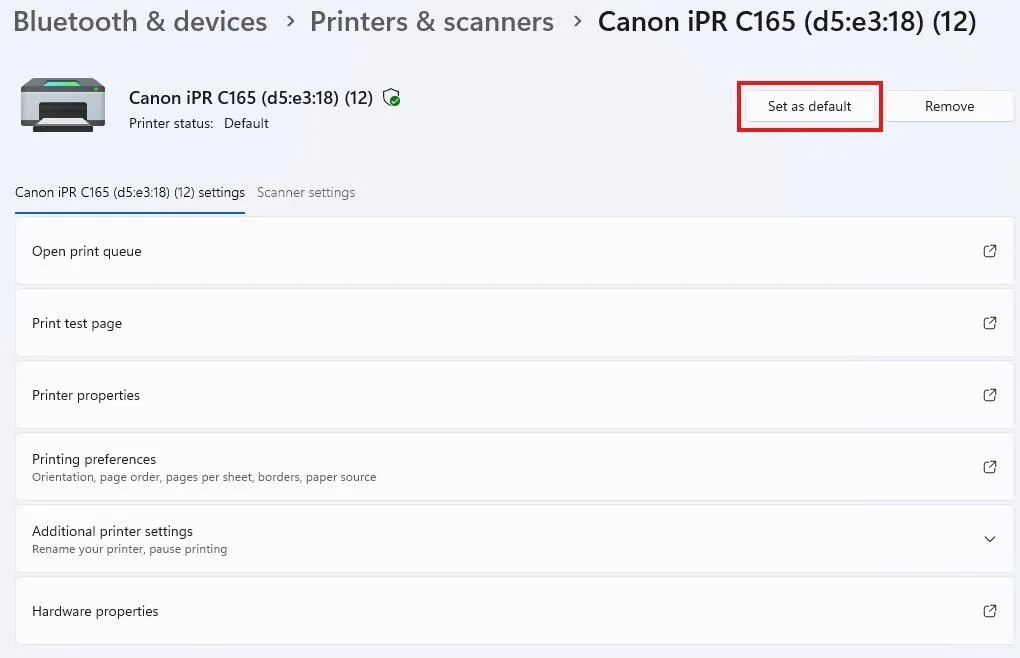
Your screens may look slightly different from these. If you can’t find a setting or your printer isn’t listed, contact your school’s IT support team.
3. Set the print settings
Section titled “3. Set the print settings”Every file will print with these settings, so you only set them once.
-
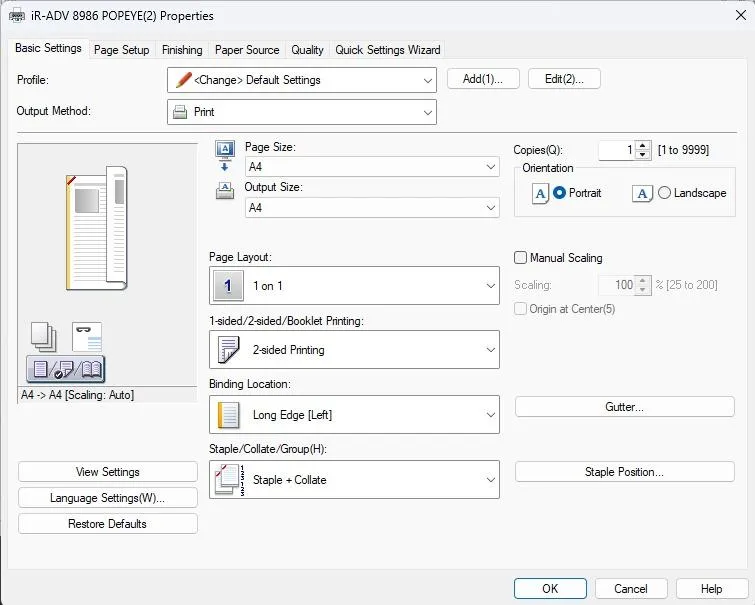
In Printers & scanners, click your printer, then click Printing preferences.
-
Choose 2-sided, staple or booklet, and colour, then click OK.
Batch print
Section titled “Batch print”1. Unzip the files
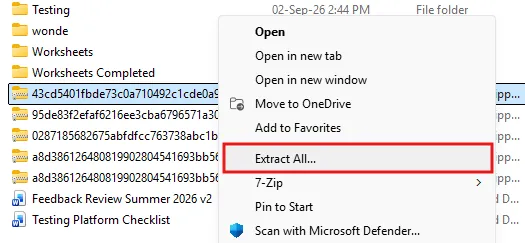
Section titled “1. Unzip the files”Open your Downloads folder. Right-click the .zip file, click Extract All, then click Extract. A folder opens with all the student papers.
2. Print 15 at a time
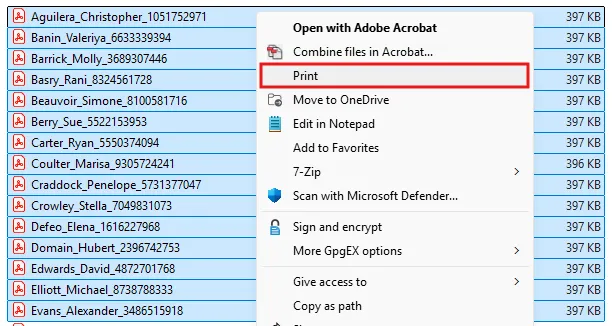
Section titled “2. Print 15 at a time”- Click the first file, hold Shift, then click the 15th file. This selects all 15.
- Right-click one of the selected files and click Print. On Windows 11, click Show more options first.
- Repeat for the next 15 until the whole class is done.
If a PaperCut box pops up for every file, see A PaperCut pop-up appears for every file.
3. Collect at the printer
Section titled “3. Collect at the printer”Log in at the printer as you normally would and release your jobs. Tap Print All if you see it. Each student’s paper comes out as its own stapled set or booklet.
Batch print with Print Conductor
Section titled “Batch print with Print Conductor”Some schools use Print Conductor, a Windows app for printing lots of files in one go. It has no 15-file limit and doesn’t need Adobe Acrobat or a default printer to be set.
- Choose Separate when you download, then unzip the files.
- Open Print Conductor and add the files. Click Add Folder and pick the unzipped folder, or drag the PDFs into the list.
- Choose your printer from the printer list.
- Open the printer settings and choose 2-sided, staple or booklet, and colour.
- Click Start. Each student’s paper is sent as its own print job.
Troubleshooting
Section titled “Troubleshooting”| Problem | What to do |
|---|---|
| Print isn’t in the right-click menu | Check you’ve selected 15 files or fewer, you’ve extracted the .zip, and PDFs open with Adobe Acrobat. On Windows 11, click Show more options. |
| Printed single-sided, unstapled or on the wrong printer | Your default printer or settings have changed. Go through the setup again. |
| A PaperCut box appears for every file | Ask IT to change this (see below). |
| You have to release each job one by one | Ask IT to turn on the Print All button (see below). |
Printing more than 15 files at once
Section titled “Printing more than 15 files at once”Windows only lets you right-click print 15 files at a time. You can raise this limit yourself by following the video below, or ask IT to do it for you.
If Windows says registry editing has been disabled, ask IT to do it.
A PaperCut pop-up appears for every file
Section titled “A PaperCut pop-up appears for every file”Your IT team can fix this. The account selection or cost confirmation pop-up is a per-user setting. For staff who print Running Paper assessments (or the reprographics account), set account selection to charge automatically to their personal account or a fixed shared account, with no pop-up. If you need the pop-up for cost centre selection, the standard pop-up lets the user apply one selection to all documents in the queue.
References: PaperCut: Batch Printing and the Popup and Hold/Release print queues | PaperCut: Account selection
You have to release each job one by one
Section titled “You have to release each job one by one”Your IT team can fix this. In the device’s Secure Print Release settings, enable Show button to release all pending jobs (the Print All button). It’s normally on by default, but some sites switch it off. Alternatively, enable Automatically release jobs upon login on the reprographics device, if you’re happy for every held job to print at login.
References: PaperCut: Configure Secure Print Release | PaperCut: Release All and Cancel All buttons